Appearance
Step 4 — Run the Bootstrapper
The Stremio Account Bootstrapper configures your Stremio account with a complete addon setup in a single browser session — stream sources, metadata, subtitles, and TorBox integration all in one go.
Prerequisites
- A verified Stremio account (email and password)
- A TorBox account with a valid API key
- A modern browser (Chrome, Firefox, or Edge)
Open the tool
Authentication
Enter your Stremio email and password in the Authentication section, then click Log in.
Alternatively, paste a Stremio AuthKey into the field below the OR divider — click the ❓ icon next to the field for instructions on how to retrieve it.
This overwrites your current addon configuration
The Bootstrapper warns on the page itself: "You will wipe the existing setup." Use Backup configuration (visible after logging in) to save your current setup before proceeding if needed.
Change your password after completing setup
As a precaution, it is recommended to change your Stremio account password once the Bootstrapper has finished. You can do this at web.stremio.com under account settings.
Backup / Restore
Immediately below the authentication section you will see Backup configuration and Restore configuration buttons. If you have an existing Stremio setup you want to preserve, click Backup configuration before continuing.
Step 1 — Select a preset
Presets are presented as radio buttons. Standard is selected by default.
| Preset | Description |
|---|---|
| Minimal | Core addons only — for users who want to customise further |
| ⭐ Standard | Balanced addon set — recommended, and the default selection |
| Full | Extended catalogs and addons |
| All-in-One | Maximum coverage for power users |
| No streams | Metadata and catalogs only, no stream sources |
| Factory | Resets account to Stremio defaults |
TIP
Standard is pre-selected for a reason — it's a solid all-round setup. Leave it as-is unless you have a specific reason to change it.
Step 2 — Select language
Choose your preferred language for catalogs and subtitle defaults. English is selected by default.
Available languages: English, Spanish (Latino), Spanish (Spain), Portuguese (Brazil), Portuguese (Portugal), French, Italian, German, Dutch.
Step 3 — Enter debrid API key
This is where you connect TorBox.
- Click the dropdown (currently showing "None") and select TorBox
- Paste your TorBox API key into the Enter API key field
- Use the
+button if you want to add a second debrid service
Step 4 — Additional addons (optional)
Optional addons you can enable on top of the preset:
- Anime Kitsu — anime catalog and metadata
- USA TV — US live TV channels
- Argentina TV — Argentine live TV channels
- StremThru Store — additional content store
Leave all unchecked unless you specifically want one of these.
Step 5 — Custom addons (optional)
If you have an addon manifest URL for a third-party addon not listed above, paste it here. Not required for a standard setup.
Step 6 — Additional options (optional)
| Option | What it does |
|---|---|
| No 4K | Excludes 4K streams from results — useful for slower connections or devices that don't support 4K |
| Cached-only (debrid) | Only shows streams already cached on TorBox — guarantees instant playback, hides uncached sources |
| Max size | Sets a file size cap on streams shown |
| Kid-friendly | Filters adult content from all catalogs |
Step 7 — Advanced options (optional)
Fields for an RPDB key (rated poster images) and a custom TMDB key. Both are optional — leave blank unless you have accounts with those services.
Step 8 — Load preset
Click Load addons preset. This loads your configured preset into the tool ready to sync — it does not push anything to your account yet.
Step 9 — Customize addons (optional)
After loading the preset, you can reorder or further adjust addons before syncing.
Step 10 — Sync to Stremio
Click Sync to Stremio. This is the final step — it pushes the entire configuration to your Stremio account.
This takes around 30–60 seconds. Do not close the browser tab while it is running.
Verify
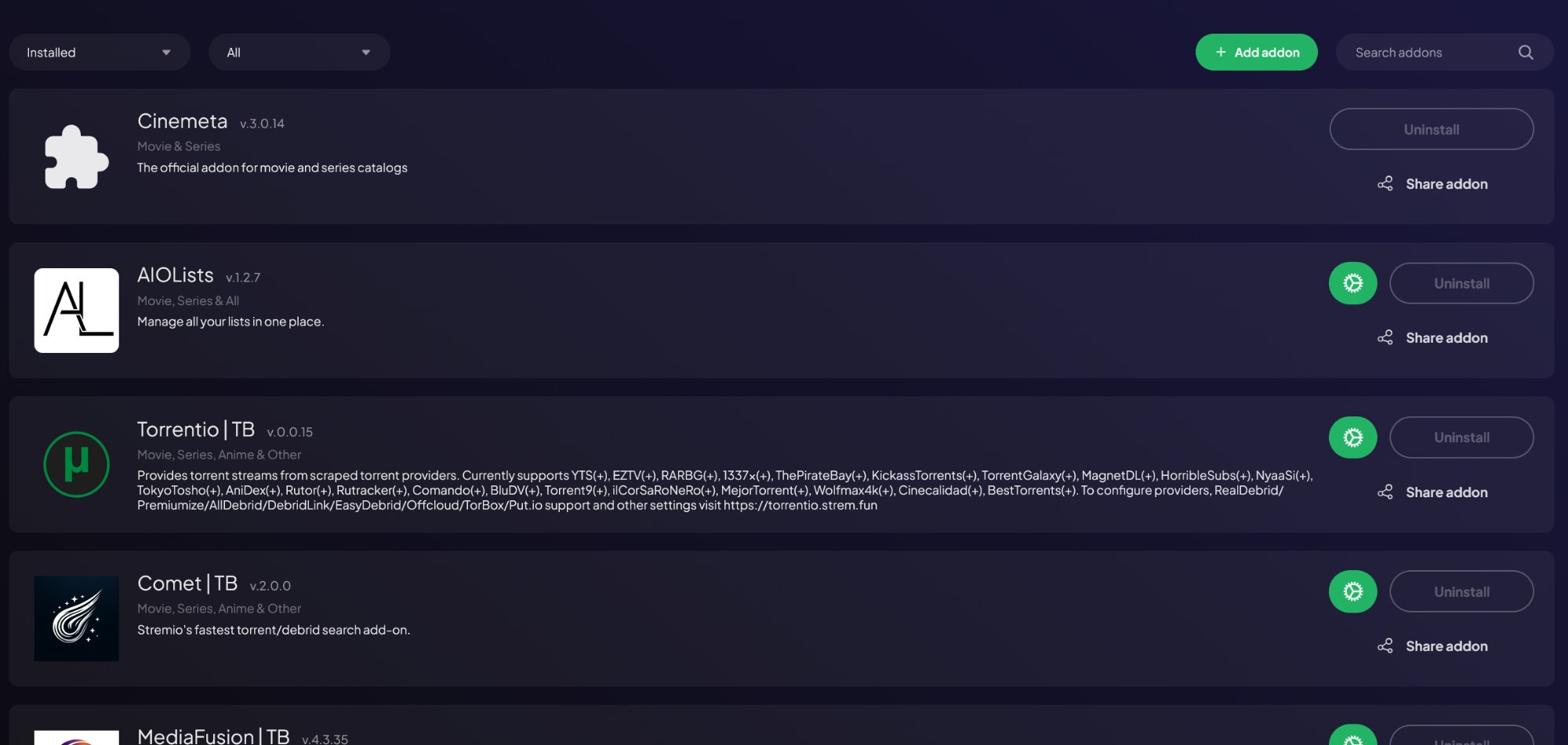
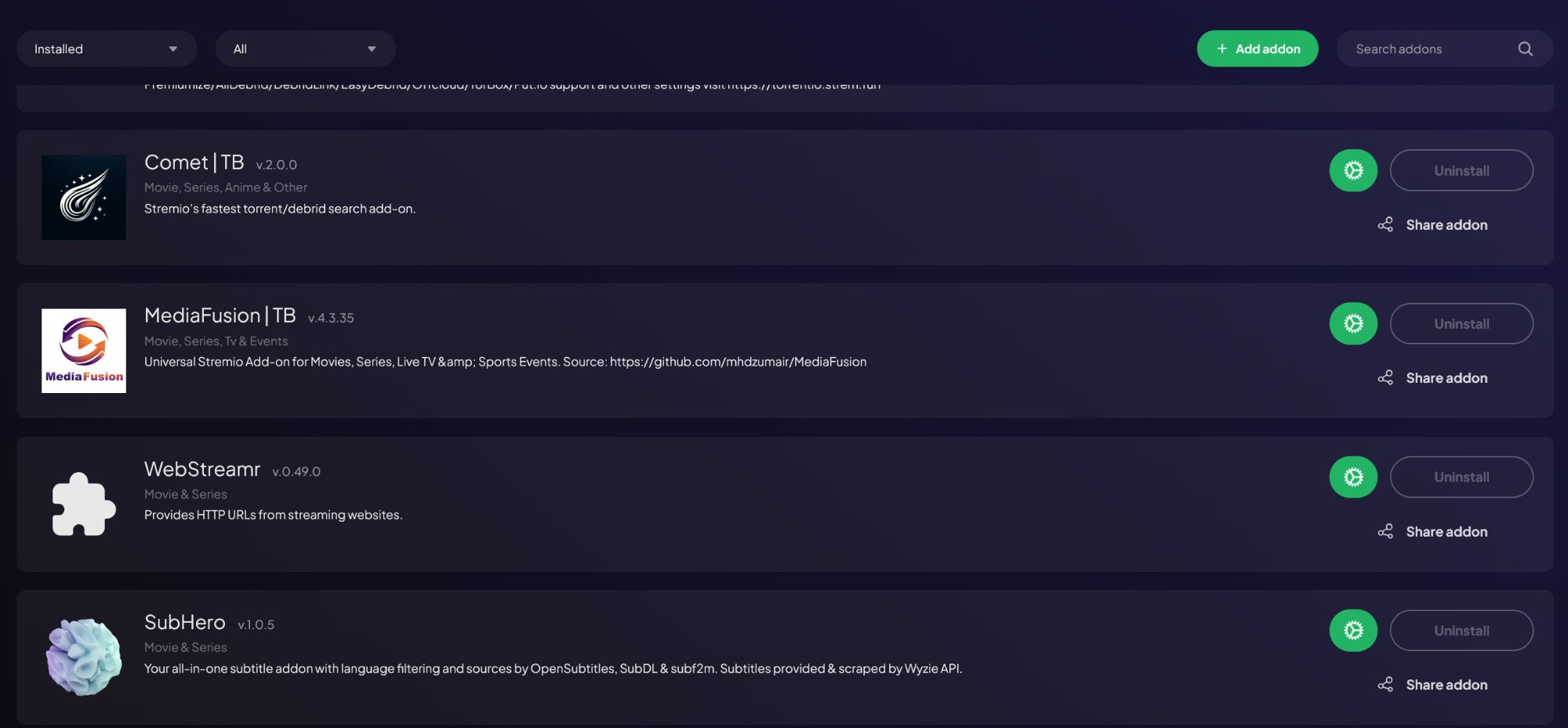
Open web.stremio.com or the Stremio app and go to ⚙️ Settings → Addons. Your new addons should be listed. If they are not showing yet, log out and back in to force a sync.
Making changes later
The Bootstrapper is designed as a one-time setup tool. For ongoing changes — reordering addons, renaming catalogs — use Addon Manager, linked from the Bootstrapper page.
Step 5: Install the Stremio app →
What it looks like when it's worked
After syncing, your Stremio addons page should show the following installed addons: